
Batteries-included development environment for the Defold game engine, powered by Neovim
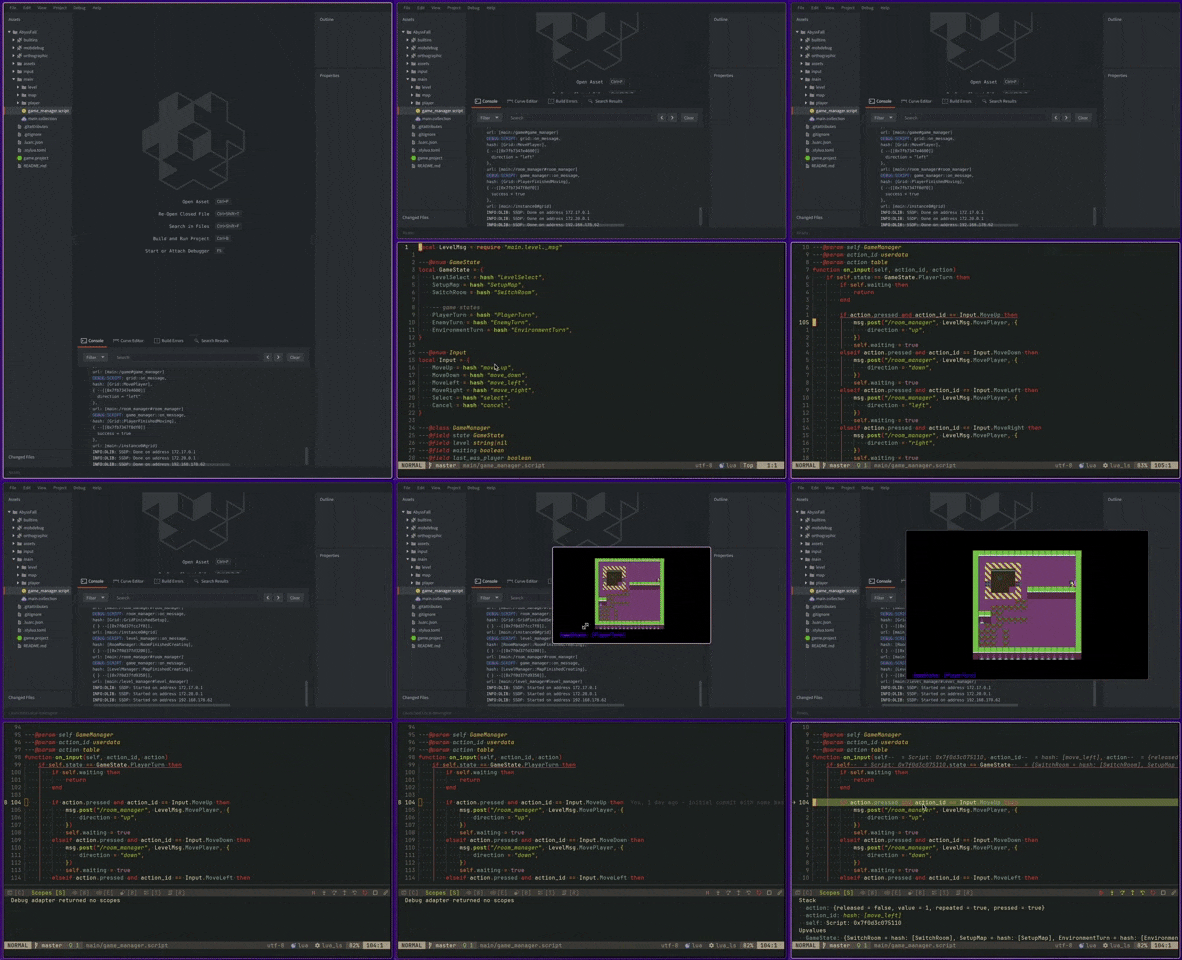
- Code Hot-Reloading: Make code tweaks and see them live in Defold, no waiting.
- Defold Control from Neovim: Run Defold commands right from Neovim with custom shortcuts.
- LSP Integration: Get Defold API hints and autocomplete in Neovim’s built-in LSP.
- Dependency Annotations: Auto-load LSP annotations for your Defold dependencies.
- Debugger: Step through your code and dig into issues with ease.
- Snippets: Insert pre-made code snippets to save time.
- Linux 🐧 - First class & fully supported
- MacOS 🍎 - Experimental, both ARM and Intel Macs are supported
- Windows 🪟 - Experimental
Since Neovim is a terminal based application it has to be run through something, by default we do this through Neovide or a terminal
Note: While optional, I'd recommend you to have Neovide installed and available in your PATH
These are the terminal supported by default
One of these (in the order presented here) will be picked depending on what you have installed.
If you want to pick a specific one you have to do so like this:
{
    "atomicptr/defold.nvim",
    -- redacted for brevity...
    opts = {
        -- lets use kitty
        launcher = {
            type = "terminal",
            executable = "kitty",
        },
    },
}In order to use a custom terminal you have to configure the launcher section of the settings:
{
    "atomicptr/defold.nvim",
    -- ...
    opts = {
        -- this time we'll add `wezterm` via absolute path
        launcher = {
            type = "terminal",
            executable = "/run/current-system/sw/bin/wezterm",
            arguments = { "start", "--class={CLASSNAME}", "--", "{NVIM}" },
        },
    },
}
Consider adding support for the custom terminal to crates/bridge/src/terminals.rs.
defold.nvim is replacing these variables in the arguments list
- {CLASSNAME} - (Linux only) The class name we'll use for the terminal window
- {ADDR} - The address (netsock) or path to the socket (fsock)
- {NVIM} - Path to the Neovim executable
{
    "atomicptr/defold.nvim",
    lazy = false,

    -- (Optional) Required when using the debugger
    dependencies = {
        "mfussenegger/nvim-dap",
    },

    -- This makes sure the native library downloads at installation
    build = function()
        require("defold").download()
    end,

    opts = {
        -- config options, see below
    },
}defold.nvim utilizes lazy loading backed into the plugin, so all you gotta do is call our .setup(opts) function to use it
local defold = require "defold"
defold.setup(config) -- config options, see belowlocal config = {
defold = {
-- Automatically set defold.nvim as the default editor in Defold (default: true)
set_default_editor = true,
-- Automatically fetch dependencies on launch (default: true)
auto_fetch_dependencies = true,
-- Enable hot reloading when saving scripts in Neovim (default: true)
hot_reload_enabled = true,
},
launcher = {
-- How to run neovim "neovide" or "terminal" (default: neovide)
type = "neovide",
-- path to your launcher executable (optional)
executable = nil,
-- arguments passed to the `executable` (or neovide)
arguments = nil,
-- choose file based sockets (fsock, unix only) or network based sockets (netsock) or use nil for the default
socket_type = nil,
},
debugger = {
-- Enable the debugger (default: true)
enable = true,
-- Use a custom executable for the debugger (default: nil)
custom_executable = nil,
-- Add custom arguments to the debugger (default: nil)
custom_arguments = nil,
},
-- setup keymaps for Defold actions
keymaps = {
-- build (& run) action
build = {
-- make this available in normal and insert mode
mode = { "n", "i" },
-- run via Ctrl+b
mapping = "<C-b>",
},
},
-- Force the plugin to be always enabled (even if we can't find the game.project file) (default: false)
force_plugin_enabled = false,
}
local defold = require "defold"
defold.setup(config)By installing and running the plugin once, Defold should automatically use Neovim as its editor. (Unless you disabled the setting above)
If you manually want to setup Defold, run :SetupDefold
For debugging we're using mobdap which is running on top of MobDebug so you need to have that available in your project.
The easiest way is using defold-mobdebug in your project.
And then you run use :DapNew and the game should be running
In order to use snippets you need to either have LuaSnip installed or use any other VSCode Snippet compatible plugin and set it up yourself
You can retrieve the plugin root via:
local defold = require "defold"
local root = defold.plugin_root()Here's how you can interact with Defold directly from Neovim:
-
:Defold This commands starts vim.ui.select to let you select a Defold command to run
-
:DefoldSend
<command>This command lets you send any arbitrary command directly to your Defold editor. Use this for scripting or keybindings. For example, use:DefoldSend buildto trigger build & run. -
:DefoldFetch This command fetches all Defold dependencies and creates annotations for the Lua LSP. Run with bang to force re-downloading the annotations.
-
:SetupDefold This commands does the required setup for Defold to use Neovim as its external editor (this will be done by default unless disabled, see config above)
GPLv3
