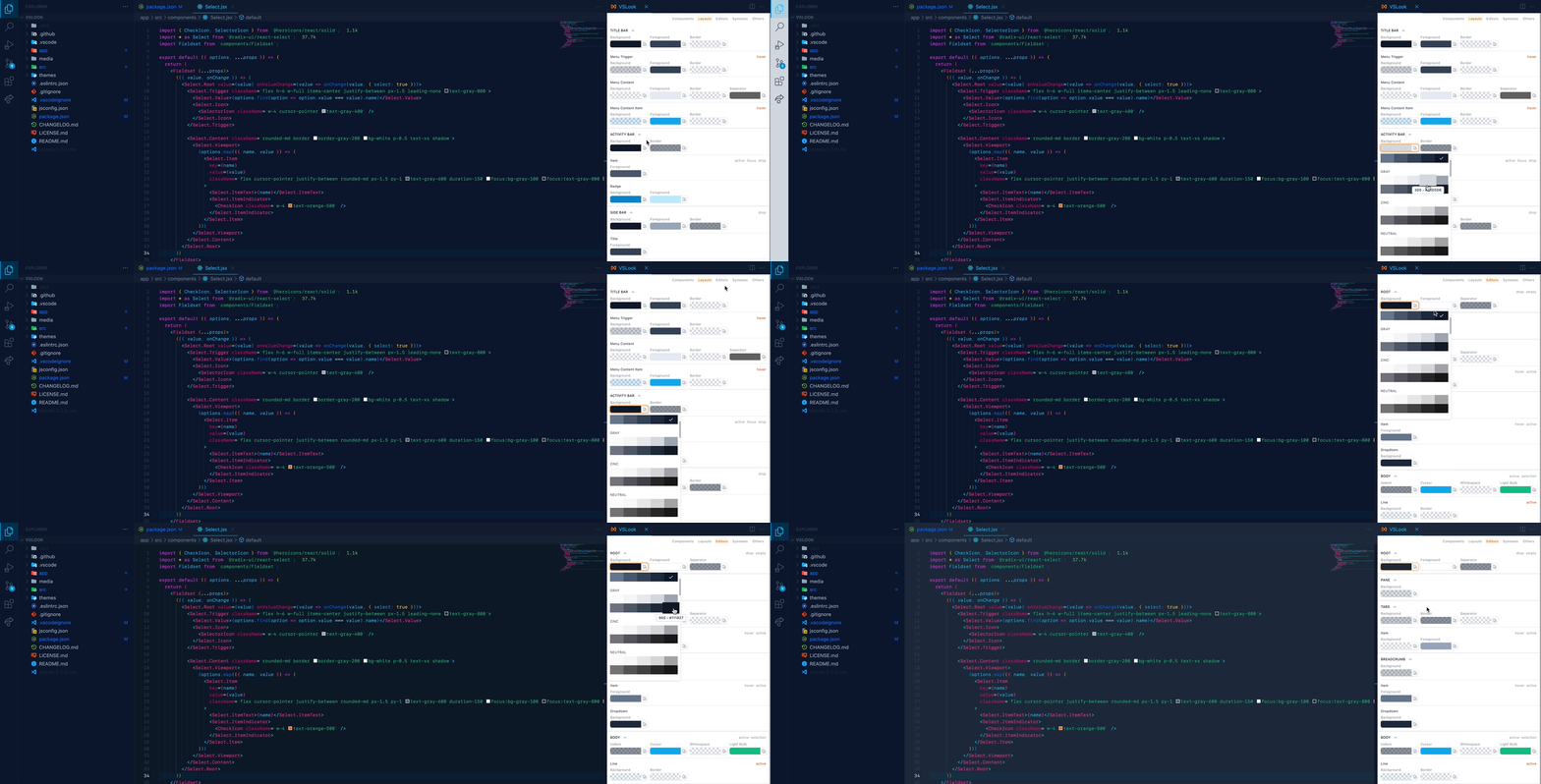
-
This is extension will delete
colorCustomizationsandtokenColorCustomizationsinsetting.json. This behavior is because vscode doesn't update the UI when the theme file changes. It only updates whensetting.jsonchanges. -
VSLook will reload VSCode every time it's closed in order to show the latest colors from the theme file
- Install from marketplace.
- Choose VSLook from Color Theme.
- Open Command Palette
Ctrl+Shift+P. Search for VSLook: Edit and pressEnter.
For styling guide, click here.
- Open Command Palette
Ctrl+Shift+P. Search for VSLook: Export and pressEnter. - Theme will be saved in
$HOME/vslook-theme.json.
- Open Command Palette
Ctrl+Shift+P. Search for VSLook: Clone and pressEnter. - Choose the theme you want to clone.
- VSLook will copy all the styles from the selected theme.
- This action is not reversible.
- Changing syntax colors with VSLook won't work correctly after cloning a theme.
VSLook comes with Tailwind & Material color palettes.
To change palette
- Go to Settings
Ctrl+,. - Search for VSLook Palette Type.
- Choose the palette you want to use.
Create color variables from Color Picker. It will merge with color palettes.
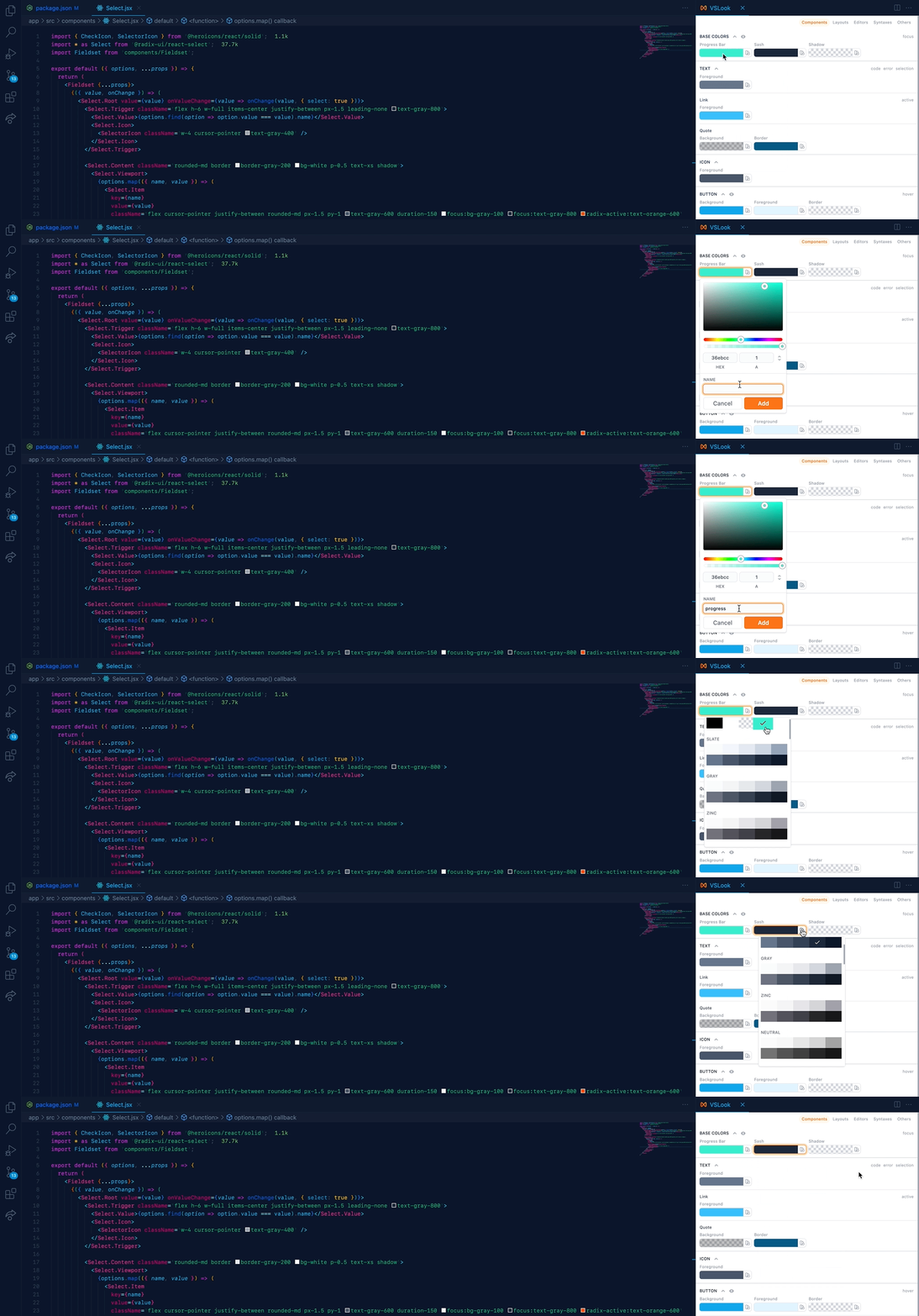
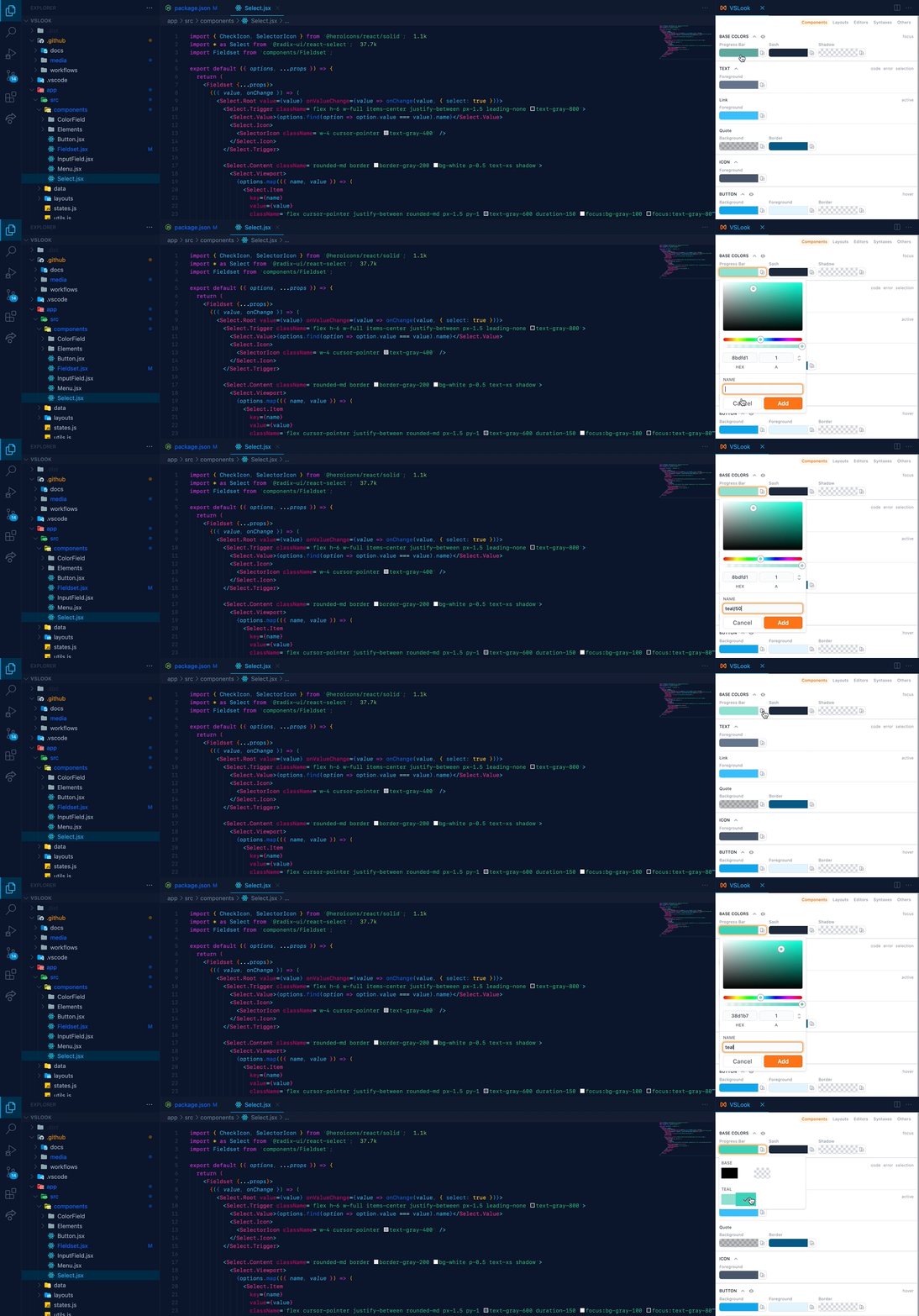
To group your color variables, use a / in their names.
If you wanna set bulk amount of colors, open setting.json and paste something like this.
"vslook.palette.colors": {
  "base":{
    "primary":"#111e6c",
    "secondary":"#b0dfe5"
  },
  "pink": {
    "100": "#ef4444",
    "200": "#ec4899",
    ...
  },
},